
Costume Fees
Info
How to Buy a Costume
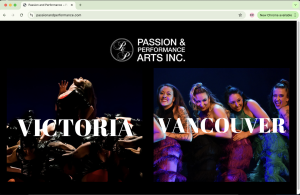
- Head to passionandperformance.com and select your studio’s location.
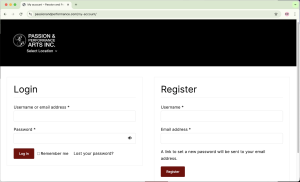
- Login into your account or Register for an account.
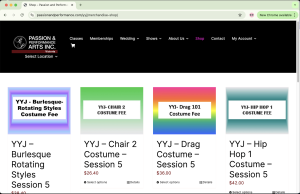
- Select Shop from the navigation bar at the top of the landing page.
- If you only intend to buy costumes, you may need to scroll down past the merch.

- Click on the class you are performing with.
- Ensure you read the description of the costume and what is provided and what you will need to provide yourself.
- Pay attention to the Session or Show your performing in.
- Choose a size option, if required.
- The costume is not always decided when you are paying your fees. The Costumes Team may be in touch to request your size again once it has been chosen. Make your best guess at size. A size chart will be posted as soon as it is available.
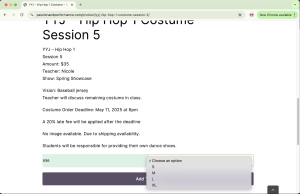
- Click “Add to Cart.”
- If you are purchasing more costumes, head back to the Shop webpage and continue the process.
- When you have added all your costume payments to the cart, select “View cart,” or the cart icon at the end of the navigation bar at the top of the page.
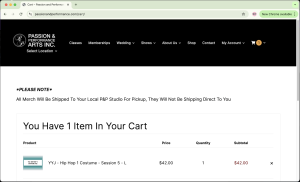
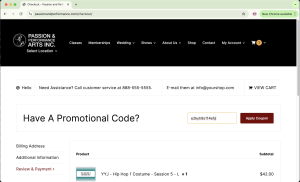
- Note: here, you will have the option to “Apply Promo Code.” If you have a “Store credit” from your Costume Savings Account or Account Credit, wait until after the shipping fee has been applied to enter your code.
- From your cart, “Proceed to checkout.”
- Enter your Billing address.
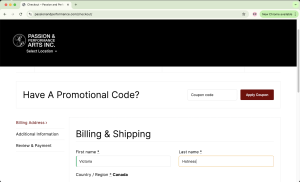
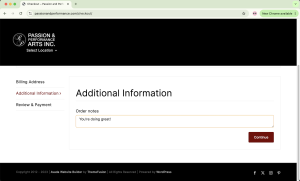
- This page is optional.
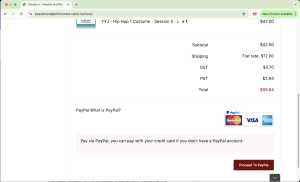
- Review your order and totals with taxes and shipping fee.
- If you have a Promo Code or “Store Credit,” enter it now.
- You can now proceed to PayPal.
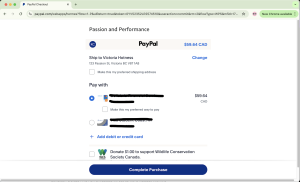
- Login to your PayPal account, or create an account. Enter your payment details, or select a previously saved payment. Select “Complete Purchase.”
- The PayPal webpage will pop up with a message informing you that it will automatically send you back to the Passion & Performance webpage. Once back at the P&P webpage, it will confirm your transaction has gone through and you are finished!
- The Costumes Team will distribute your costumes in class as they become available.

Step 1:
Step 2:
Costume Terminology
Your Content Goes Here

